Accessibility is one of those words that makes people’s eyes glaze over. It sounds technical. It sounds expensive. And for a lot of small organisations — NDIS providers, charities, community groups — it gets filed under “we’ll deal with that later” alongside a dozen other things that feel more urgent.
I get that. But if your website doesn’t work for someone using a screen reader, or someone who can’t use a mouse, or someone with low vision, then it doesn’t work. It’s like building a community centre with no ramp. The building still functions — just not for everyone.
This guide is for NDIS providers and not-for-profits who want to understand what accessibility actually means, what Australian law says about it, and what to practically do about it — without needing a computer science degree or a $10,000 audit.
What does web accessibility actually mean?
An accessible website is one that works for everyone, regardless of how they access it. That includes people who use screen readers because they can’t see the screen. People who navigate with a keyboard because they can’t use a mouse. People with low vision who need to enlarge text or rely on strong colour contrast. People with cognitive disabilities who need clear, simple language and predictable navigation.
It also includes people with temporary impairments — a broken arm, an eye infection, a migraine — and people using the internet in challenging conditions, like bright sunlight on a phone screen or a slow regional connection. Accessibility isn’t only about permanent disability. It’s about making your site usable in more situations for more people.
The international standard for web accessibility is called WCAG — the Web Content Accessibility Guidelines. It’s published by the World Wide Web Consortium (W3C) and comes in three levels: A (minimum), AA (the standard most organisations aim for), and AAA (aspirational). The version that matters right now is WCAG 2.2 Level AA — that’s what the Australian Human Rights Commission recommended as the minimum standard in their April 2025 guidelines update, replacing the WCAG 2.0 recommendation that had been in place since 2014.
What does Australian law actually say?
Here’s where I see a lot of confusion — including from web designers who should know better. So let me be clear about what’s required and what’s recommended.
No Australian law mentions WCAG by name. There is no statute that says “your website must conform to WCAG 2.2 Level AA.” If someone is telling you it’s a legal mandate, that’s not quite right.
What does exist is the Disability Discrimination Act 1992. Section 24 says you can’t discriminate in how you provide goods, services, and facilities. That applies to websites. It applies to the private sector. And it applies to every organisation — for-profit, not-for-profit, government, and everything in between.
The Australian Human Rights Commission has issued guidelines recommending WCAG as the benchmark for meeting your obligations under the DDA. Their April 2025 update recommends alignment with WCAG 2.2 Level AA. These aren’t legally binding on their own — but they’re what a court would look at if someone brought a complaint.
And complaints have been brought. In 2000, Maguire v SOCOG established that the Sydney Olympics website was discriminatory because a blind user couldn’t access it. In 2014, Mesnage v Coles became the first web accessibility case to reach the Federal Circuit Court — a vision-impaired customer couldn’t use Coles’ online shopping site with a screen reader. That case was settled out of court, with Coles agreeing to improve the site’s accessibility. No Australian court has yet issued a full judgment on website accessibility — but the direction of travel is clear.
So the practical position is this: WCAG isn’t technically mandated, but ignoring it creates real legal risk under the DDA. The AHRC recommends it. Courts have upheld complaints about inaccessible websites. And for NDIS providers specifically, serving people with disabilities while running an inaccessible website is — there’s no other word for it — contradictory.
What does WCAG 2.2 Level AA actually look like?
This is where most guides lose people. They list dozens of technical “success criteria” with names like “1.4.3 Contrast (Minimum)” and assume you know what that means. I’d rather just tell you what it means for your website in plain English.
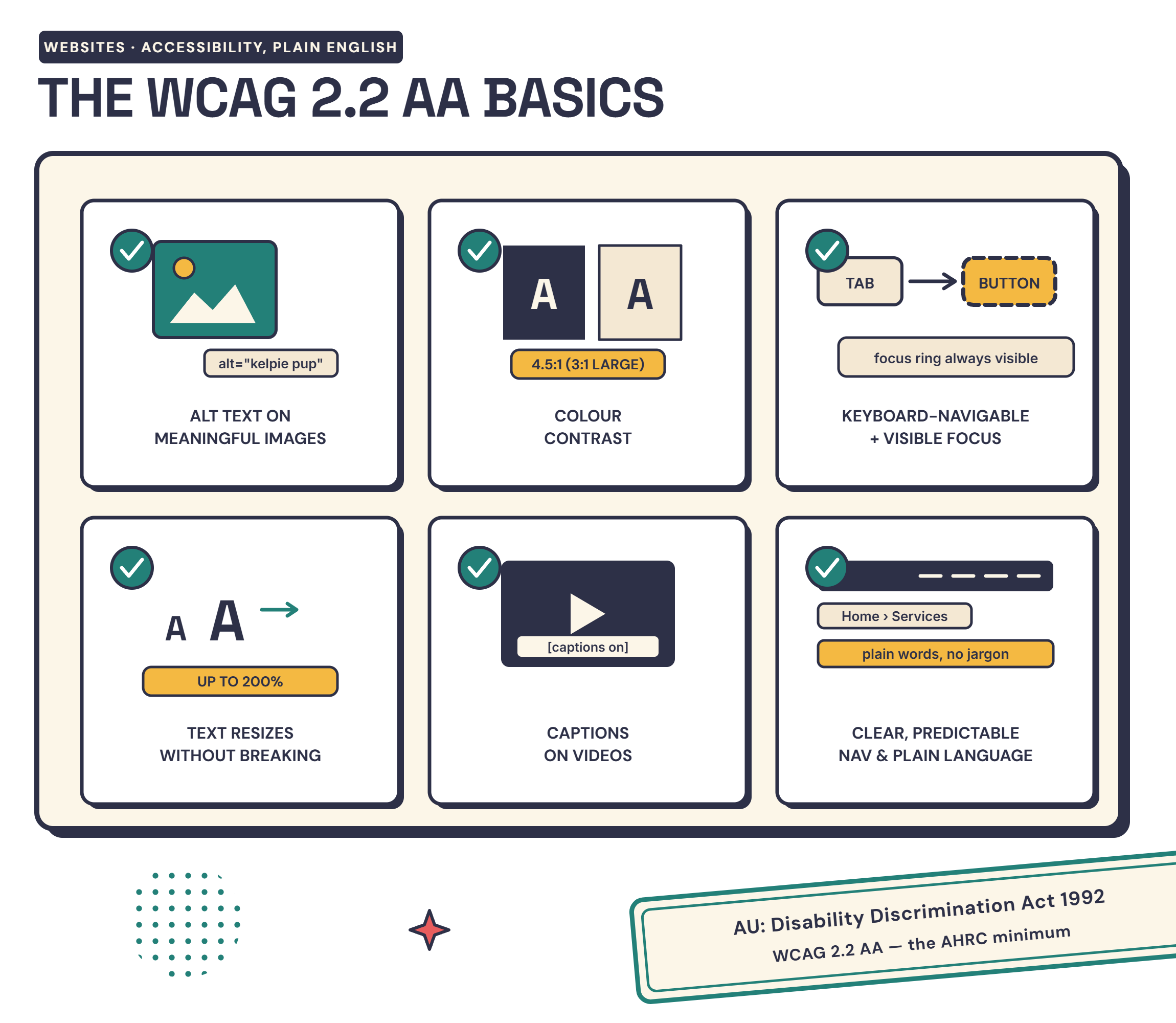
Your images need alt text. Every meaningful image — photos of your team, your logo, images that convey information — needs a short text description that a screen reader can announce. Decorative images (background patterns, visual flourishes) should be marked so screen readers skip them. Writing good alt text takes about 10 seconds per image.
Your text needs sufficient colour contrast. Normal text needs a contrast ratio of at least 4.5:1 against its background. Large text (18px or larger, or 14px bold) needs at least 3:1. White text on a light grey background? That fails. Dark navy on white? That passes easily. There are free tools that check this in seconds.
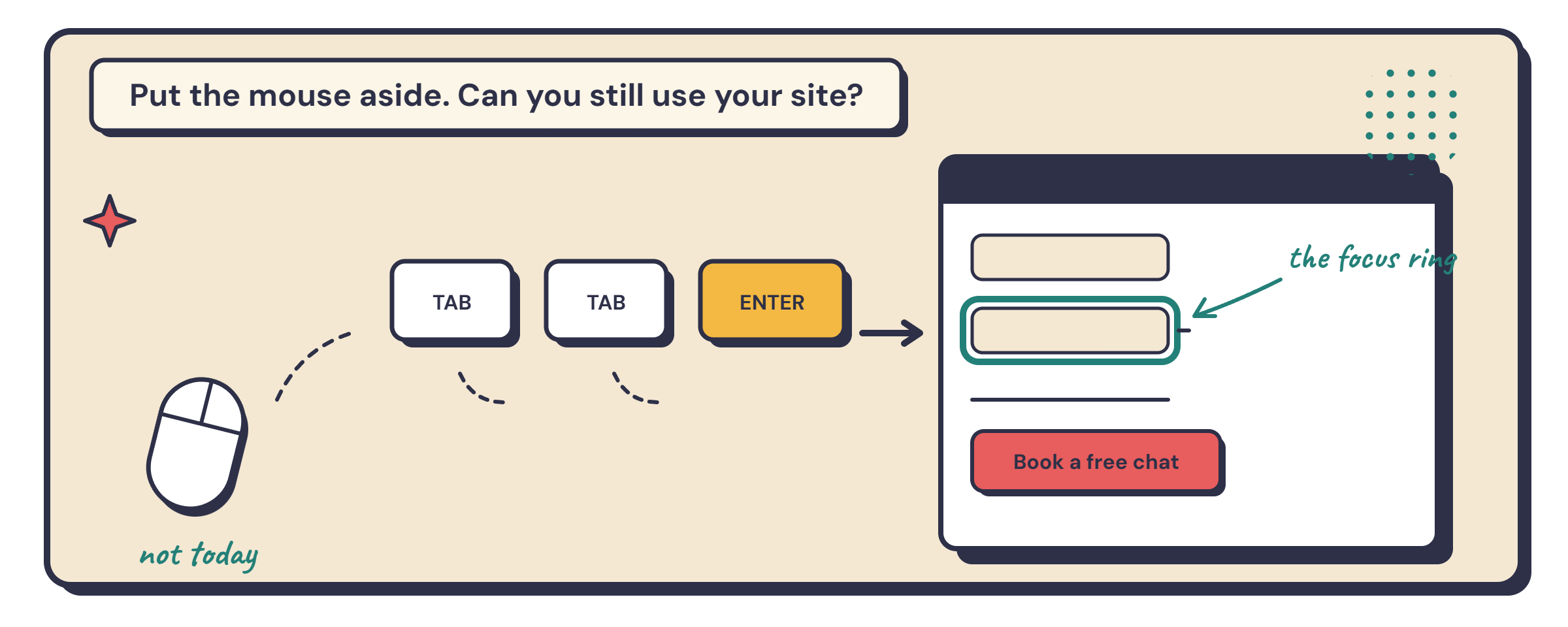
Your site needs to work with a keyboard. Every link, button, form field, and interactive element should be reachable and usable by pressing Tab and Enter — no mouse required. There also needs to be a visible indicator showing which element is currently selected. If you can’t tell where you are on the page when tabbing through, someone who relies on keyboard navigation can’t either.
Your forms need proper labels. Every text field, dropdown, and checkbox needs a visible label that’s programmatically connected to the field — not just placeholder text that disappears when you start typing. If a form has errors, those errors need to be described in text, not just a red border or a colour change that someone with colour blindness might miss.
Your headings need a logical order. H1 first (usually the page title), then H2 for main sections, H3 for subsections. Don’t skip levels — going from H2 to H4 breaks the structure that screen readers use to let people jump between sections.
Your links need to describe where they go. “Click here” and “read more” don’t tell a screen reader user anything useful. “Read our referral guidelines” or “Download the 2025 annual report” tells them exactly what they’re getting.
Text needs to be resizable. Users should be able to zoom to 200% without content overlapping, disappearing, or requiring horizontal scrolling. This is more about how the site is built than anything you need to manually manage — but it’s something to check.
Videos need captions. Any pre-recorded video with spoken audio needs synchronised captions. Not auto-generated YouTube captions with errors — actual reviewed captions that accurately reflect what’s being said.
Navigation needs to be consistent. Your menu should be in the same place and the same order on every page. People with cognitive disabilities rely on predictability. Changing your navigation layout between pages creates confusion.
That’s the practical checklist. It’s not exhaustive — WCAG 2.2 Level AA has over 50 success criteria — but these are the ones that matter most for a small organisational website and the ones that catch the majority of accessibility issues.
How to check your own website right now
You don’t need to hire someone to find out if your site has accessibility problems. These free tools will catch most of the common issues:
WAVE (wave.webaim.org) — paste your URL in and it gives you a visual overlay of your page showing errors, alerts, and structural elements. It’s the quickest way to get a snapshot.
Google Lighthouse — built into Chrome. Right-click your page, click “Inspect,” go to the Lighthouse tab, and run an accessibility audit. It gives you a score out of 100 and a list of specific issues with links to explanations.
axe DevTools — a free browser extension for Chrome and Firefox. More detailed than Lighthouse and used by a lot of accessibility professionals. The free version catches most issues.
Colour contrast checkers — WebAIM’s Contrast Checker (webaim.org/resources/contrastchecker) lets you enter your text and background colours and instantly see if they pass. Useful when you’re choosing brand colours or reviewing a design.
And here’s the test that doesn’t require any tools at all: try navigating your site using only your keyboard. Put your mouse aside. Press Tab to move between elements. Press Enter to activate links and buttons. Try to fill in a form. Try to get to your contact page. If you can’t do it comfortably, someone who relies on keyboard navigation can’t do it at all.
These tools catch the technical issues. They won’t tell you whether your content is written in plain English or whether your information architecture makes sense for someone with a cognitive disability — that takes a human review. But they’re a solid starting point, and they’re free.
Why accessibility shouldn’t cost extra
This is something I feel strongly about. I’ve seen agencies quote $2,000–$5,000 specifically for “WCAG compliance” as a line item on top of the website build. Sometimes more for NDIS providers — because the assumption is that NDIS means bigger budgets.
I think of accessibility like wheels on a car. You wouldn’t list them as an optional extra. They’re part of what makes it a car. Accessibility is part of what makes it a website — at least in 2026 it should be.
When you build accessibility in from the start — choosing the right heading structure, writing alt text as you add images, picking colours with sufficient contrast, making sure your forms have proper labels — it adds almost nothing to the development time. Where it gets expensive is when someone builds a site without considering any of this and then has to go back and retrofit everything. That’s like building the car and then trying to attach the wheels afterwards. It’s harder, takes longer, and costs more.
Every site I build includes accessibility compliance as standard. Same price whether you’re a café, a tradie, or an NDIS provider. I don’t charge more for it because I don’t consider it optional.
With modern development practices and AI-assisted testing tools, keeping a site accessible is easier than it’s ever been. The standards evolve — WCAG 2.2 added new criteria around dragging movements, focus appearance, and consistent help — but the core principles haven’t changed since the first version: make content perceivable, operable, understandable, and robust. If you’re building with those principles from day one, updates are adjustments, not rebuilds.
What about beyond compliance?
Meeting the guidelines is the floor, not the ceiling. The requirements often lag behind what’s actually possible — and behind what people actually need.
My approach is to build beyond the minimum where it’s practical. That might mean adding a skip-to-content link even though it’s technically Level A rather than AA. Or ensuring focus indicators are clearly visible and not just the browser’s default thin outline. Or writing content at a reading level that doesn’t assume expertise.
If you’re an NDIS provider, your participants might have intellectual disabilities, low literacy, or English as a second language. WCAG doesn’t fully address those needs — but your website can. Plain language, clear structure, consistent navigation, and genuine thought about who’s reading it go a long way.
If you’re an NFP, your audience might include elderly volunteers, people in regional areas with slow connections, or community members with limited digital literacy. Building with those people in mind isn’t just accessibility compliance — it’s respect for your community.
And if anyone finds an issue with a site I’ve built, there’s a way to let me know — and part of my commitment is to fix it as quickly as possible. Accessibility isn’t a box you tick once and forget. It’s an ongoing practice.
Where does this fit with everything else?
If you’re an NDIS provider, I’ve written a detailed guide covering what NDIS provider websites actually need — including the marketing rules, pricing framework, and the 2026 reforms that are changing provider requirements.
If you’re running a not-for-profit, my NFP website guide covers ACNC requirements, donation processing, grant funding options (including Lotterywest and Google Ad Grants), and the common mistakes I see on charity websites.
Both of those guides reference accessibility, but this post is the detailed reference — the one you come back to when you want to check specifics or run your own audit.
If you want me to take a look at your current site, I offer a free website audit that includes an accessibility review. No sales pitch — just an honest assessment of where you’re at and what needs attention.
Frequently asked questions
Is WCAG compliance legally required in Australia?
No Australian law mentions WCAG by name. But the Disability Discrimination Act 1992 prohibits discrimination in providing services, and the Australian Human Rights Commission recommends WCAG 2.2 Level AA as the minimum standard. The Human Rights Commission found inaccessible websites to be discriminatory in 2000, and a major supermarket settled a web accessibility case in 2015 — so while WCAG isn't technically mandated, ignoring it creates real legal risk.
What level of WCAG should I aim for?
WCAG 2.2 Level AA. That's the standard the Australian Human Rights Commission now recommends as the minimum, updated from WCAG 2.0 in April 2025. Level A is the bare minimum and misses important requirements. Level AAA is aspirational — useful to aim for where practical, but not expected for most small organisations.
How do I check if my website is accessible?
Start with free tools. WAVE (wave.webaim.org) gives you a visual overlay of issues. Google Lighthouse (built into Chrome DevTools) includes an accessibility score. axe DevTools is a browser extension that runs detailed checks. These catch the technical issues — but also try navigating your site using only a keyboard and no mouse. If you can't reach every link, button, and form field, neither can someone who relies on keyboard navigation.
Does making a website accessible cost more?
It shouldn't. Accessibility built in from the start adds almost nothing to the cost of a website. It only gets expensive when you build a site without considering it and then try to retrofit. I include accessibility compliance in every site I build at no extra charge — it's part of what a website should be.
Want to know how your current website stacks up?
Get a free, plain-English audit.
Get Your Free Audit →